

Preface: Target audience
These tips are intended to help with troubleshooting an existing self-hosted dual-router VPN setup that was already fully functioning, and you are now experiencing issues while traveling. While some tips may also be helpful in troubleshooting new setups, it’s not the primary focus for this article.
While the same general troubleshooting principles could apply to any type of dual-router VPN setup, the screenshots are specific to GL.iNet routers. Some examples may be specific to RemoteToHome (RTH) customers that received setup assistance through our Personal Support or Signature VPN services.
Symptom: The VPN client is not connecting (aka. no internet)
This is one of the most common issues encountered while traveling. The primary symptom will be that despite the travel router being connected to the internet, you laptop or PC connected to the travel router does not have any internet access. To confirm this, you will want to connect to your travel router and access the Admin Panel to verify the status of the VPN Client (Admin Panel > VPN > VPN Dashboard). The layout of the VPN Dashboard will vary based on your router’s firmware version.
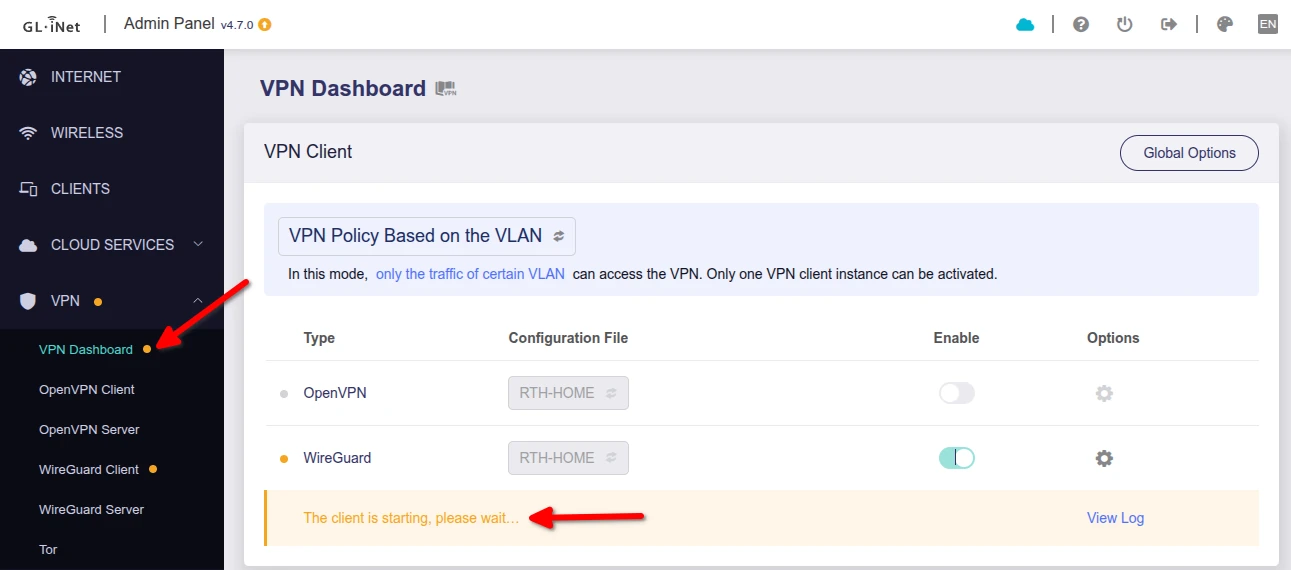
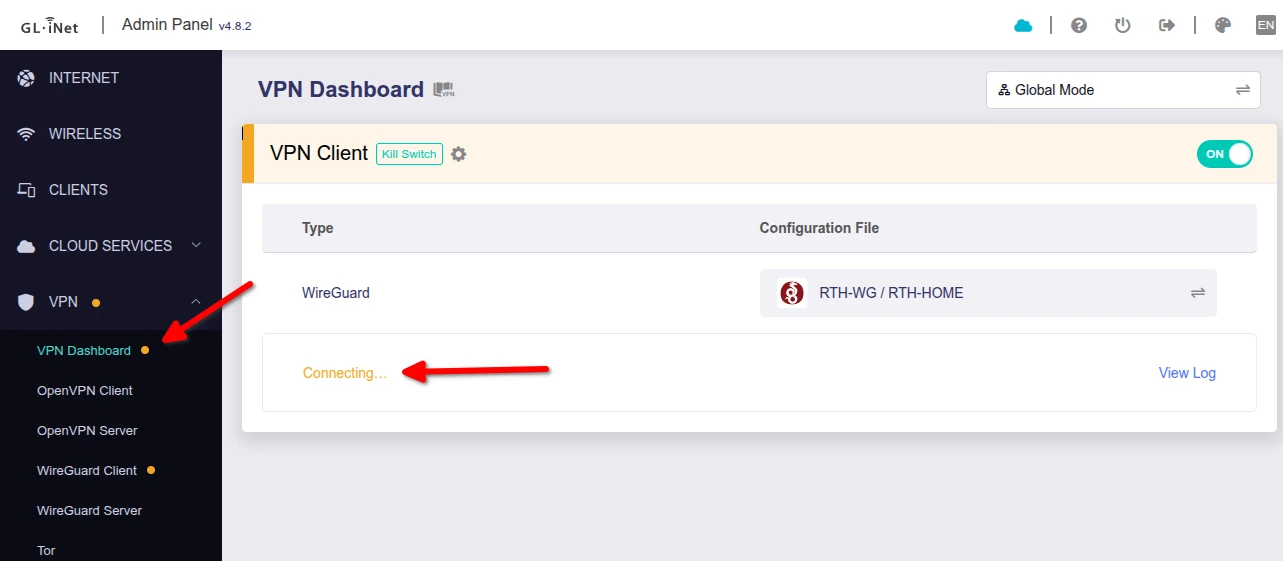
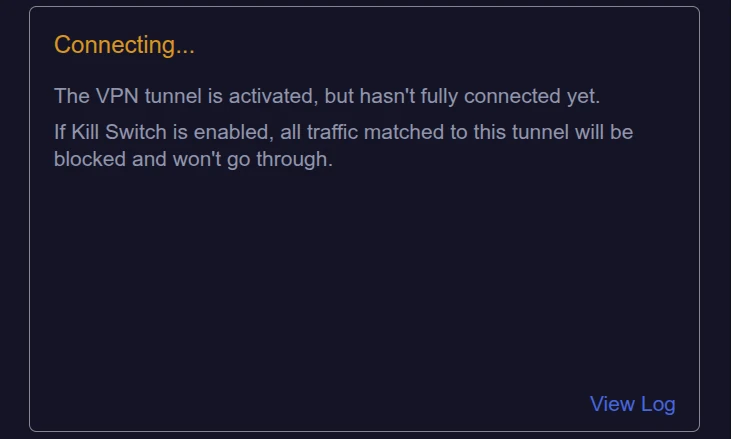
If you see the yellow dot next to the VPN menu and the “The client is starting” or “Connecting” text in the VPN Dashboard, then it means your travel router’s VPN client is not able to connect to your VPN server router back at home.
If the VPN Client does eventually show connected (green), but web pages don’t seem to load (or load extremely slowly), then you have a different issue – such as MTU size or throttling – but you can stop reading this post. Those issues will be covered in another article (under construction).
Diagnosis
Now we need to determine if the issue is on the travel side (the VPN Client router), or on the home side (the VPN Server router). First we’ll want to troubleshoot the travel router using the steps below.
IMPORTANT NOTE: Disconnect or shutdown your work device before troubleshooting. These steps require disabling the VPN client which will temporarily expose your real travel location IP address. Only use a personal device (laptop, tablet or phone) for these steps. If you are using a mobile phone, then also disable mobile data so you are able to test with just WiFi.
🛑 Before going forward, please also note that if you are testing with the VPN Client / travel router on the same network (e.g. inside the same house) as the server router, the VPN Client may not be able to connect simply because your primary ISP router does not support Hairpin NAT. This is somewhat common for residential routers. To test properly, connect the router to a network outside of your home (e.g. your cell phone mobile data hotspot).
Travel Router testing steps
1. Ensure the travel router is connected to the local internet: The travel routers require connection to an existing internet source to function (they do not produce their own internet). Look in the router’s Admin Panel > INTERNET menu (black menu on the left). Directly under the blue section with the picture of your router, you should see a box with a green dot in the upper-left corner and either the word “Ethernet” or the name of a WiFi network. If you do not have a green dot on this page (the dot is grey or yellow), then you first need to get the router connected to the internet using either:
- Ethernet – by connecting the WAN port of your travel router to the LAN port of an upstream router (instructions).
- WiFi – by either clicking the “Switch Network” button at the bottom of the “WiFi” box, or the “Connect” button in the “Repeater” box to scan and find a nearby WiFi network to connect with (instructions).
If the VPN light still remains yellow after completing this step, then continue to the next step.
2. Disable the VPN Client & the Kill Switch: Go to Admin Panel > VPN > VPN Dashboard. The VPN Dashboard page steps will vary slightly based on firmware version. You can see the firmware version next to the “GL.iNet | Admin Panel” header on the upper-left of the page. Refer to the pictures above:
- Version 4.8.x and above: Just toggle the switch in the upper-right from “On” to “Off”. This will disable the VPN Client and the Kill Switch together.
- Version 4.7.x and prior (you must do both):
- Disable VPN client – Toggle the “Enable” switch to off (grey) for both the OpenVPN and WireGuard rows to stop the VPN Client.
- Disable Kill Switch – Click on the “Global Options” button on the upper-right of the VPN Client box and disable the “Block all Non-VPN Traffic” switch in the popup box (and click Apply).
Note: RTH Signature VPN customers can skip this step and simply use their “rth-net..” non-VPN WiFi network for testing.
3. Verify internet connectivity: After performing the steps above, verify you are able to reach the internet by visiting a website you don’t normally visit (to avoid browser cache) – e.g. Yahoo.com or Wikipedia.org. While you’re at it, it’s also a good time to run a Speedtest.net test to get your baseline local internet speed without the VPN client running. Once verified and recorded, move on to Server Router testing.
If you are still not able to reach any websites after all the steps above, then your travel router may be connected to a Captive Portal WiFi network. These are common for hotels, airports, and larger coffee shop/restaurant chains and typically involves a WiFi network with no password, but instead they have a pop-up web page that you have to complete some action on.
Captive Portal WiFi Authentication Steps:
- Ensure the VPN Client & Kill Switch are turned off (from the previous step); or for Signature VPN customers, simply use the “rth-net” WiFi.
- Go the DNS menu (Admin Panel > NETWORK > DNS) and verify the “Mode” drop-down box is set to “Automatic”. Also ensure that the “DNS Rebinding Attack Protection” switch is Off (grey).
- Now on the same device that you’re using to view the Admin Panel, open a new browser tab. In the very top address bar (not down in a search box), type in either neverssl.com or 1.1.1.1 and hit enter. The browser should then redirect you to the host’s captive portal webpage to complete any remaining actions needed for full access.
- If this fails, go back to the router’s Admin Panel > INTERNET menu and look for line that says “Gateway” in your active connection box. Copy the IP address on the right side of this Gateway row and now paste it into the address bar of the other browser tab and hit enter.
- If the above doesn’t work, there are other methods to try, including “MAC Cloning” which can be found here.
- Apple users only: If you are using any type of Apple device for these steps, first make sure you disable iCloud Private Relay. It’s highly recommended to keep this OFF permanently for any Apple travel devices you will be using with a self-hosted VPN setup. Otherwise it may re-route your device traffic back through an iCloud gateway near your real travel location, defeating your VPN location privacy.
Note that many Captive Portal networks have an authentication timeout period (e.g. 24 hours), so you may have to repeat this process daily to maintain internet access.
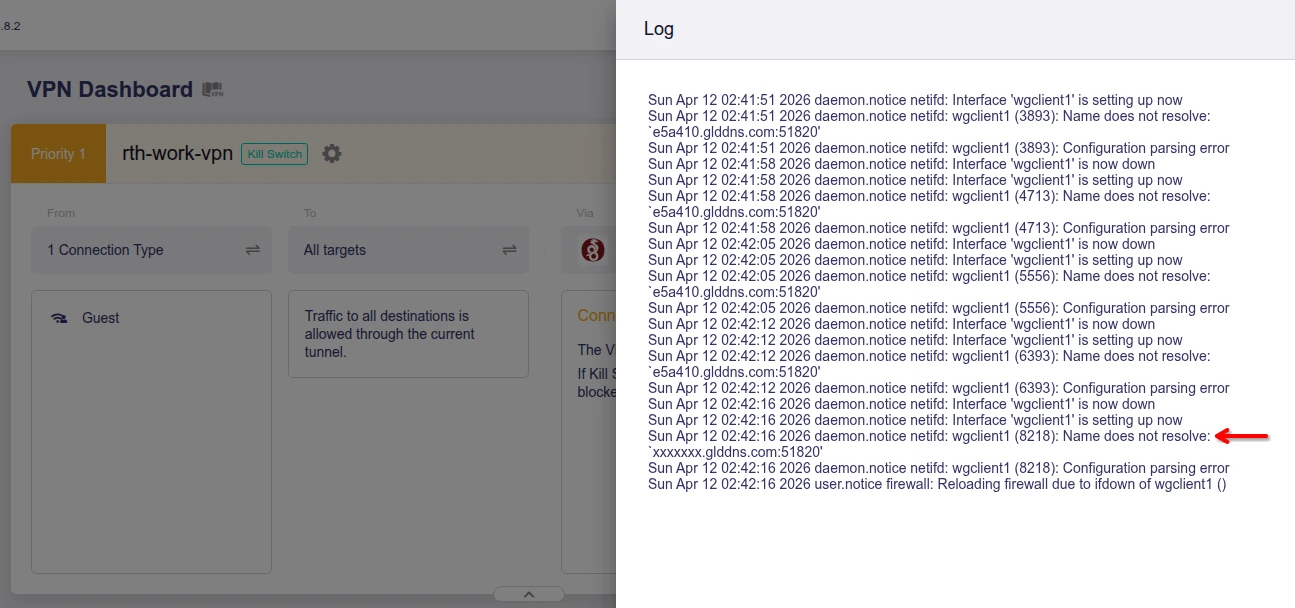
4. Check your VPN client profiles are setup using DDNS: RTH customer assisted setups can skip this step unless you’ve made significant modifications to the initial setup. For others, when you initially created and exported the Wireguard or OpenVPN profiles on your server router, there would have been a step in the export process to chose the Dynamic DNS (DDNS) url instead of an IP address. If you did not chose the DDNS url option, then when your home ISP eventually rotates the home IP address (residential IPs are typically not static), your VPN setup will break as your VPN client can no longer find the new server IP to connect to.
You can verify if you’re using DDNS by looking in your VPN Client settings (Admin Panel > VPN > WireGuard Client or OpenVPN Client). On this page you’ll see a list of your VPN profiles. If the “Server Address” column shows something similar to “xxxxxx.glddns.com:51820”, then you’re okay1 (assuming you also enabled Dynamic DNS on the server router during setup). If not, then you’ll need to edit the VPN profile to use the DDNS url of your GL server router (from your server router Dynamic DNS settings).
5. Re-test the VPN Client: Once you have successfully verified internet connectivity then it’s time to re-test the VPN Client. Reverse the process from step 2 on the VPN Dashboard page to see if the VPN Client is now able to turn fully green and shows connected. If it magically started working again without you even changing anything, it could simply be that your home ISP rotated your home IP address and the GL DDNS records needed a few minutes to get updated with the new IP so your travel router could find the server again. If not, it’s time to troubleshoot the Server Router. (Note: Signature VPN customers can again skip the step 2 portion and just check if the VPN Client has turned green on the VPN Dashboard.)
6. Final check – Test from another device: If you are an RTH customer, we likely assisted in setting up separate VPN profiles for your phone and/or personal laptop using the Wireguard (or OpenVPN) software app. Try using the app and activating the profile while connected to the same network as travel router and then again from another network (e.g. using mobile data). If are are able to connect to successfully connect to the server (and check for your home IP) from either network, then you can rule out a server issue. If you can connect from another network, but not from the same one the travel router is using, then something about the local network is blocking the VPN tunnel.
Server Router testing steps
1. Ensure the server router is connected to the internet: Hopefully you enrolled your GL.iNet server router in one of the following services for remote access *prior* to traveling:
- GoodCloud.xyz – If you previously enrolled your server router in the GL.iNet Goodcloud service, then you can log-in and check the current online status from your device dashboard.
- ZeroTier (e.g. Signature VPN customers) – if you previously enrolled your server router with ZeroTier, then you can login to your ZT dashboard using the “Legacy Central” option. Once logged in, click on your Network ID, and scroll down to your device list (the grey rows). One should list your “home” (server) device and in the “Last Seen” column it should show no more than 1 or 2 minutes. Any longer indicates the device is offline. If it is online, you should be able to reach the server router’s Admin Panel in a browser tab using the “Managed IP” address listed on that row.
- Tailscale – if you previously enrolled your server router with Tailscale, then you can sign-in to your tailnet and view the “Last Seen” timestamp for your device. If it is online, you should be able to reach the server router’s Admin Panel in a browser tab using the IP listed under “ADDRESSES” field for that row.
If the router shows online through one of these services, then skip forward to the next step.
Fallback method = physical check of router LED light: If you did not enable any of these services prior to traveling or it shows offline, then you will need to have someone physically check on the device. They will want to look at the LED indicator light for your GL router model. The indicator light on will be a steady white light if the device is online and functioning normally.
If your server router does not show online using one of the methods above, then it is not connected to the internet, so your travel router has no home VPN server to back connect to. This will have to be fixed for your VPN to work again (unless you have a backup server router to connect with).
If the indicator light is slowly flashing blue, it means the server router is booted up, but still searching for an internet connection. This could mean:
- There is an outage with the home Internet Service Provider (ISP). To verify, have someone at the home connect directly to the primary house WiFi and see if there is service. If you are remote, you may be able to check if your ISP has a service outage info page. This may available publicly or by logging in to your ISP website account. If there is a published outage you’ll have wait for your ISP to fix it.
- If there is no service and there is not a published outage, then you may want to report the outage to your ISP as it’s possible that only the service lines for your immediate area or house were cut (digging, tree fall, etc), or that your ISP router has stopped functioning properly.
- If there IS working service the house, but your GL router is still blinking blue, then it likely means either someone disconnected the ethernet cable or the cable itself has gone bad or been damaged. First, have someone ensure the ethernet cable is *firmly* connected from the WAN port of your GL server router to one of the LAN ports of the main ISP router (they may be labeled LAN, Ethernet, or simply numbered 1,2,3,4 on the back). Next try swapping the cable out with a new one. Any modern CAT 6 or CAT 5E rated ethernet cable should work.
If the indicator light is a steady blue, it means the router is in system bootup mode. It should switch to either a flashing blue or solid white within ~45 second. If it seems stuck, try unplugging the router’s power supply for 10 seconds and re-plugging it back in. If it remains stuck on blue, then your router is likely corrupted and will have to be factory reset and fully reconfigured (or reloaded from backup).
If the indicator light is off, it means the router is powered off. Check the power cable connection at both ends and ensure any power strip or outlet it’s connected to has power (you can test by trying another device in the same outlet or plugging the router into a known-good outlet).
As a last step before troubleshooting further, try to give the router a reboot – either remotely using the reboot button in the Admin Panel via one of the services above, or physically by unplugging it for 10 seconds. Powering the device off/on will not cause it to lose any settings. If you are not able to get the router back to a steady white light, then you have found your VPN connection issue. If you’ve verified the ISP connection is not the issue, then the router itself many need to be factory reset and reconfigured, or replaced. Either will require physical on-site assistance.
2. Verify that your Server Router VPN Ports are still reachable (aka. active port forwarding): These steps will vary based on your home setup, and assume you’ve already verified the router is online (above).
If your GL server router is the primary router/gateway and connected directly via ethernet cable to a “modem only” device or fiber-optic ONT box (no ISP router involved), then ports are not likely your issue. The GL server router will have automatically opened the necessary ports. The only likely remaining port issue would be if your ISP suddenly changed your home service to CGNAT2 (more below) or has started port blocking for some reason.
If your GL server router is the primary router/gateway but is connected to a personal or ISP modem/router combo unit that was placed into “bridge mode” or “pass through mode” then check to ensure it’s still in bridge/passthrough mode and something didn’t change because of a box reset or an automatic firmware update. A quick way to check is to login to your GL server router Admin Panel and see if the WAN IP assigned to the “Ethernet” interface (on the Admin Panel > INTERNET > Ethernet box > IP Address line) matches the IP you see by checking icanhazip.com from inside the same house. If the WAN IP does not match but instead has an IP address listed from a private IP range, then this is your issue.
If your GL server router is connected behind a primary router/gateway (the most common scenario) then you would have had to setup port forwarding in the primary router to initially get things working. You will need to verify this is still configured properly in the primary router. The exact steps here will vary significantly based on the model of the primary router and the ISP (and if you’re using the ISP provided router or a BYOD router), but the general steps are the same:
- Check/set a fixed LAN DHCP IP reservation (sometime called Static DHCP assignment). Many models of ISP router will automatically do this when setting up port forwarding (e.g. Xfinity/Cox), but others make it a separate process (e.g. Verizon). If your router does not handle it automatically and you skipped this step, then this can be a common cause of breakage of later on. If you set the port forwarding to point to the LAN IP assigned to your travel router at the time (e.g. 192.168.0.111), and then either router was rebooted or temporarily disconnected later, it could have re-assigned your GL server router a new DHCP LAN IP, in which case the port forwards are no longer pointed to your GL router. The fix will be to look at your existing port forward rules and either point them to the new IP, or reassign the GL router to the LAN IP they are already pointing to (with a fixed DHCP reservation this time).
- Next, check your port forwarding rules. You should have at least one port forward rule already setup. If you don’t, then this is your issue. It’s possible they were cleared out by either a device reset and/or firmware upgrade. Often, if someone in the house calls the ISP complaining about an internet issue, the first thing the ISP support rep will do is remotely reset the router, causing these rules to be deleted.
- If you need to re-setup your port forwarding rules, you can login to the Admin Panel of your GL server router and look under the VPN server menu (VPN > WireGuard Server, or VPN > OpenVPN Server) and see what port your server is currently using to ensure you forward the correct ones. The GL router defaults are port 51820 UDP for Wireguard port 1194 UDP for OpenVPN.
Some ISPs allow you to view/modify port forwards remotely using a mobile app (e.g. Xfinity) or via their website (e.g. Spectrum.net), most others will require you to access the router’s internal Admin Interface via a local IP address from inside the network/house (credentials often printed on a sticker on the router itself).
If managing your router requires access to the router internal interface, you would typically need someone physically within the house to assist with this, but as long as you do have remote access to your GL server router Admin Panel (and a copy of the ISP router login credentials), then RTH can usually help you reach the primary router Admin interface remotely by relaying a connection through your GL server router. Contact our Personal Support service for assistance.
NOTE: If your GL server router is behind a primary router (e.g. ISP router) and you replace that router or switch the GL server router to a new home home, then you will always need to re-setup port forwarding on the new primary router.
Advanced blocking – VPN protocol & port blocks
There are some cases where you may encounter travel networks that block VPNs. This could be using simple port-based blocking of common VPN ports, or it could be more sophisticated methods such as DPI (Deep Packet Inspection). VPN blocking is common for:
Corporate/Government Networks: It is extremely common for companies to monitor all outbound traffic from a their internal networks – especially the primary company LAN. This is to prevent company data leakage/theft, overall security and visiting of non-approved sites. This will often include any non-approved VPN connections and other virtual networking technology like Tailscale or ZeroTier. Sometimes corporate “guest” networks will be slightly more relaxed, but still implement a basic level of blocking and monitoring.
School Networks: Very similar to corporate networks. Most schools monitor traffic and prevent students from visiting non-approved sites. Not just for security, but for their own protection to prevent students from network “abuse”, such as illegal downloading/piracy, hacking, posting illegal content and some level of censorship. This will often include basic VPN protocol blocking and can also extend to campus housing/dorms, etc.
Cruise Ships / Airlines / Resorts / Hotels: Many cruise lines have become increasingly aggressive about VPN blocking. This is also for security reasons like the above examples, but also to help with manage the limited bandwidth they have available and be able to up-sell passengers – both for increased data caps and for premium on-ship streaming & content services. Airlines VPN blocks are for similar reasons, but are less prevalent as many of their customers need to be able to connect to corporate VPNs. It’s less common to find resorts and hotels that have advanced DPI tech, but some have implemented at least basic controls to prevent network abuse.
Censorship Countries: There are several counties that implement either total, or partial VPN blocking, including: North Korea, China, Russia, Egypt, Iraq, Iran, Syria, Turkey, some Central Asian (-stan) countries, some other Middle East (Jordan, UAE, Qatar, esp. Zain ISP). In some of these you may have mixed results depending on the particular ISP and between landline vs cellular ISPs. There also other countries that are known to implement selective blocking on during periods of political tension, civil unrest or disasters.
Random Guest Networks (e.g. coffee shops): This is fairly uncommon, but you may run into instances where an IT admin for a coffee shop, or other free WiFi has implemented some basic VPN blocking. This is typically not sophisticated DPI/protocol blocking, but more basic blocks of common VPN ports.
If you are trying to connect to your self-hosted VPN from one of these type of networks and failing, you may want to do a quick A/B test by simply connecting your travel router to your cellular personal hotspot (or use the WireGuard/OpenVPN app on your phone). If you are able to connect successfully via your separate mobile data, then the issue likely isn’t with your VPN setup, but the network you’re trying to connect from.
Advanced workarounds
There are often ways around these types of VPN blocks by switching protocols, using specific VPN configurations and ports, or by using alternate VPN/virtual network/proxy protocol obsfucation technologies that mask your traffic (subscribe for future posts) – BUT, before you go down this path, consider if you should. Attempting to bypass corporate or school networks could be a policy violation with significant disciplinary consequences. In some countries, the use of VPNs, or at least the “use of any technology to circumvent censorship”, may be illegal.
If you still believe that more advanced techniques are appropriate for your situation, then we have significant experience helping customers find ways to get connected. Feel free to contact us about our Personal Support or Signature VPN services.
Summary
Successfully troubleshooting your self-hosted VPN while traveling requires systematically isolating whether the issue is from your travel router, the remote network you’re connecting through, or your home server router devices. Start by ruling out travel-side issues – verify internet connectivity, disable VPN components temporarily, and check for captive portals. If the travel router can reach the internet but the VPN still won’t connect with a retry, then it’s time to shift focus to your home infrastructure – confirm the server router is online, verify your port forwarding remains intact, and ensure your ISP hasn’t changed your service or reset your primary router.
Most connection failures stem from a handful of common causes: captive portal preventing full internet access, home internet service outages, someone unplugging your server router or simple home IP rotations by your ISP. By working through the checklist above, you can pinpoint the exact failure point and determine whether the fix requires local action at your travel location, assistance from someone back at home, or more advanced help with re-tooling your setup.
For GL.iNet dual-router setups specifically, remember that setting up a remote access service like GoodCloud, ZeroTier, or Tailscale is essential for helping you diagnose issues or making changes remotely while you travel. Enable at least one before you depart to give yourself remote visibility and access to your home server router when problems eventually arise.
Finally, keep in mind that some types of networks and countries take active measures to block VPN connections. Review the list mentioned above and keep this in mind when making travel plans. If you need to travel to a country that may implement blocking, then you should prepare by researching and implementing more advanced connection protocols built to avoid detection or seek professional assistance with your setup.
Footnotes
- You can test your server DDNS is working properly by looking up your “xxxxxx.glddns.com” url in a tool like nslookup.io. The IPv4 address provided should match the home IP of your server. You can find the home IP of your server by visiting icanhazip.com from inside the same house, or remotely by looking at the physical IP of the server machine in the Goodcloud, Tailscale or ZeroTier web dashboard. ↩︎
- CGNAT stands for Carrier Grade NAT, and means that instead of having a public IP address assigned to your individual router by your ISP, they instead route you and multiple other customers through the same shared IP. This means you cannot use port forwarding as your router doesn’t have control over the public IP. If your router is behind CGNAT, the WAN IP address will typically have an internal IPv4 address assigned between 100.64.x.x – 100.127.x.x (or no IPv4 address and only an IPv6). ↩︎



One thought on “VPN Troubleshooting: VPN Not Connecting”
[…] VPN client on your travel router could be failing to connect / stuck on yellow. Many of these are covered here – and while the GL DDNS servers have gone down before, it’s going to be much less […]