
Preface
This is Part 1 of an N part series on Self-Hosted VPNs (aka. Dual Router VPNs)
The goal of this guide is to provide an end-to-end education of using a self-hosted VPN for remote work, from the overall concepts and functionality, to the technical options and implementation. We’re starting from the standpoint of someone that is computer literate (you’re already a digital nomad ; ), but not necessarily technical; or at least not specifically experienced in VPNs.
In these articles we will start with determining if a self-hosted VPN is even a realistic option for your situation, and then progress through the requirements and choices, and finally the step-by-step technical setup.
For easy consumption and sharing, we’ve split this guide content into a series of separate posts. This should make it easier to skip directly to the portions of interest.
Self-Hosted VPNs post series: (We will update this index with links as the articles are posted.)
- VPN Purpose, Capabilities & Considerations
- VPN Technical Requirements:
- Hardware – Which VPN devices are right for your situation? (in-progress)
- Internet Service – What are the ISP requirements to host a personal VPN server?
- VPN Technical Setup Guides:
- Direct Wireguard / OpenVPN setups
- ZeroTier VPN setup
- Tailscale VPN setup
- Shadowsocks VPN setup
- VPN Tuning & Troubleshooting (MTUs, ports & DNS)
Since we are trying to be thorough, each post has quite a bit of detail (lots of words), so we’ve included a linked Table of Contents at the start of each article.
Author Transparency
RemoteToHome.io (RTH) is a formal GL.iNet Services Partner, and we may include affiliate product links to help support our continued publishing, but where we specifically reference the use of a GL.iNet product, it is because of our personal success using their product line for these exact purposes. We do not receive vendor compensation for writing our post content or participate in paid product placements.
The information here is provided freely because we believe in the ideals of open source technologies and the sharing of collective knowledge, and the concepts described in these posts can often be implemented on a variety of hardware.
Intro
What's the point?
There are several existing online “how-to” guides focused on setting up a self-hosted VPN (virtual private network) solution for “digital nomads” and expats, but through our years of experience setting up customers with personal VPNs, we’ve found it’s best to first take a step back and consider if a VPN is even the right solution for your needs? There are a number of factors that need to be considered for you to make this determination.
We’ve broken this down into a few primary sections:
- Understanding VPNs: What is the difference between a commercial VPN service and a “self-hosted” VPN.
- Functional Requirements & Risks: Can a VPN really allow me to work remotely? How safe is it?
- The Disclaimers: Legal considerations, export controls, licenses and company policies.
Reviewing these considerations should make it easy to determine if a self-hosted VPN is even a fit for your needs. If so, then the next consideration is what type of VPN solution is the best fit from a technical perspective. Again you’ll have options, which we’ll cover in another post.
Let’s get started!
Understanding VPNs: Commercial VPNs vs. Self-hosted VPNs
Different tools for different needs..
Commercial VPNs
We’ll start here as this is the traditional VPN model that you’re used to seeing endless advertising for (i.e NordVPN, ExpressVPN, Mullvad, Surfshark, etc). These services use various different technologies and have some different features, but the essential model is the same. You pay for a subscription to a VPN provider to use their VPN servers, and then you install a VPN “client” of some type – such as a software package, an app, a browser plug-in or even a hardware device.
This VPN client then enables you to connect to your choice of their VPN servers (usually spread out globally) over a secured “tunnel” connection and routes the traffic from your client(s) through this tunnel to their remote VPN server.
This VPN server is acting like general proxy for you and any other clients connected to that same VPN server. It then connects to “the internet” using the VPN server’s IP address to complete your requests and sends them back through your individual VPN connection to your client.
All your connections to the internet are aggregated with everyone else using that same VPN server, providing some anonymity.
The benefits to you are:
- Privacy #1 – It masks your internet activity from your local network and ISP (or government). This means all your ISP (or local coffee shop / library/ office wifi network) can see is that there is an encrypted stream of data flowing between your client device’s IP address and the VPN server’s IP address. They cannot see what activities you are doing inside this tunnel. It’s simple for them to recognize that this is likely VPN traffic in most cases, but no other details. This can be especially useful if someone is using bittorrent, download sites or streaming sites to download material of questionable legal/copyright status and doesn’t want to get cancelled by their ISP (PS – RTH does not advocate this behavior). I write “protection from government” in air quotes, as state-level entities concerned with active tracking of their citizens often use techniques such as Deep Packet Inspection (DPI) and other techniques to identify and block VPN technologies in general. If you’re even reading this blog post we’ll recommend just don’t when it comes to activity that would raise national agency’s level interest and leave it at that.
- Privacy #2 – It provides some protection against “web tracking”. Since all your web traffic now shows as originating from the VPN server’s IP, and that VPN server is consolidating your traffic with all the other clients that are currently connected to it, it’s harder for website to differentiate your individual activity on those services from anyone else using the same VPN server. This can be especially beneficial if you have an ISP that tracks our web activity to re-sale for profit (read those ISP ToS agreements ; ).
- Functionality – Bypassing geo-blocks and local network blocks. Since all your web requests now appear to come from the VPN server IP, it may allow you to access content that is geo-restricted to the country the VPN server is located in. One example might be streaming TV or sports content that is country specific. Another example may be accessing a website that is blocked by a local network policy (e.g. company or library content filter), since they only see your connection to the VPN server, not what the VPN server is accessing as your proxy.
- Security – It provides some increase in security for the services you connect to. Since all the traffic is being routed through an encrypted tunnel it protects you from “local network” hacks. This used to be a danger when connecting from open/public wifi networks where a malicious network operator could try to redirect or tamper with your activity. For example: redirecting your request to a banking site to a fake knock-off site designed to capture your username/password. Practically though, most all modern website utilize TLS (https) connections which provide you essentially the same protection by default, so we say “some protection” only in the sense that you’re being protected when visiting unsecured or very outdated web services that use no default encryption or outdated TLS protocols that are susceptible to MiTM (man-in-the-middle) attacks.
There are also several limitations and potential drawbacks to using a Commercial VPN service:
- Functionality – VPN detection and service blocking. Many “bad actors” attempt to use VPN services to do “bad internet things” – such as hacking, spamming, scamming, phishing, etc. There are many security vendors on the internet that track every IP address used by commercial VPN service providers (usually within 24 hours of new ones appearing) and consolidate them into lists that anyone willing to pay can subscribe to. These types of security services are used many large websites, employers or streaming services, and even built into the commercial router/firewall products sold by commercial networking vendors. It’s easy and often financially viable for company networks, banks, streaming services or any other commercial website to determine which users are coming in through commercial VPNs and apply different access policies for them. This could be a simple as making these users complete extra captchas, to extra logging & alerts for IT staff, to denying access entirely, and even banning users accounts (e.g. Coinbase and several other finance/crypto sites have a policy to fully cancel/revoke accounts for users attempting to access the service via a VPN).
- Privacy – Who do you trust? While the VPN service is now securing your web activity from your local network and ISP, the VPN server operator itself is able to see much more of your traffic. At a minimum this will include the connection endpoints, and often also the DNS queries* (using default configurations). Again, most modern websites use TLS (https) connections that will prevent even the VPN provider from seeing any of information you’re exchanging with website, but the VPN provider itself can now see which websites you’re connecting to, how long you’re connected and the volume of data being exchanged. Most commercial VPN services advertise “no logging” or only “essential logging”, but it’s up to you to decide how much you trust these claims, and to what extent they might be required to track/provide data based on a government/legal order without being required to disclose to you.
- Privacy – VPN data leaks. The VPN services you subscribe to may vary in technical quality and ability to for you to change configurations. If your VPN client is configured incorrectly you could be leaking DNS queries or even routing some traffic outside of the tunnel – leading to potentially a worse situation of thinking you’re protected when you’re not fully. Some platforms (notably Windows OS and Apple iOS) have had multiple instances where they don’t interact well, or override, some VPN client functions and can lead to data leaks.
- Privacy – Other web tracking. While a VPN will mask your real IP address, this is just one method that large tech providers use to track users. There are several other methods, including cookies, browser fingerprinting, and persistent logins that can often be used to track you individually no matter what IP address you’re connecting from. For example, if you login (or remain logged in) to Google, Apple, Facebook, etc, when using your VPN client, this login will persist after your IP address changes and these tracker will still be able to individually identify you regardless of the VPN “protection”. A VPN is typically only effective in anonymizing these services if you’re willing to log-out of all services, clear you browser cache & cookies (or use a separate browser), and never log-in to any of them while using the VPN. (Meaning you can’t meaningfully interact or see content on many of them.)
* DNS queries refer to the Domain Name System, which is an essential foundation of how the internet works, by translating domain names (e.g. google.com) to IP addresses that your computer understands and can connect to (e.g. 8.8.8.8).
Summary: The primary reasons for using a commercial VPN service are typically for bypassing restrictions on geo-restricted content, and to protect from tracking/blocking by your local network and ISP. Most any other rationale or benefits marketed by these VPN services are negligible at best.
Self-Hosted VPNs (aka. Private VPNs and Dual Router VPNs)
As the name implies, a self-hosted VPN is where you host both ends of the VPN connection – the VPN “client” and the “server”. The only similarity with a commercial VPN functionality is that in both cases you’re using an encrypted tunnel to securely connect two (or more) machines across an untrusted network (e.g. the internet). VPN networks can have many configurations (spoke and hub, cascading, etc), but for our primary purpose here we’re focused on a classic client/server setup where we route all the client’s traffic through your personal VPN server. The terms “client” and “server” are both a bit of a misnomer as once a tunnel is established it can be bi-directional based on configuration and firewall rules, but for our purpose we’re referring to the “server” as the device that remains constantly online awaiting a connection from the client, and is going to be the proxy for any traffic originating from the client (or devices connected to the client).
This type of configuration has a couple primary use-cases:
- You want to travel and use a VPN to make it appear all your traffic is coming from your home IP (or wherever your server is based).
- You want to travel and still be able to access devices or services inside your home network without having to expose them to the public internet.
- Both: A self-hosted VPN can perform both of these functions simultaneously.
If you’re a digital nomad / expat looking to route all your internet traffic through your home IP address regardless of your actual physical location, then “self-hosted” is what you’re looking for.
The key differences between a self-hosted and a commercial VPN are:
- Privacy – This does not mask your activity from your ISP. In fact, the entire point is typically to make all your activity appear just as if you were sitting in your living room at your home without a VPN. To all the websites and external networks you connect to, it will look just like you were connecting physically from within your own home, and your ISP has visibility to your activity as described in the sections above without a VPN.
- Privacy – Use of a residential (home) IP address: Unlike a commercial VPN service who’s IP addresses are tracked/logged/blocked, your traffic instead appears to all come from a single residential IP address. This is the primary intended audience expected by most web service providers and looks the least suspicious. It does not arouse the same concerns as commercial VPN IPs or even data center/cloud provider IPs. Websites that intentionally track/block commercial and data center IPs and VPNs for consumer services do not want to block residential IPs – unless they really just dislike having customers at all ; ). If you’re using a self-hosted VPN to mask your physical location from an employer, they’re going to expect you to normally be logging in from the same residential IP daily (or at least an IP from the same ISP).
- Functionality – Bypassing geo-blocks: This functionality is exactly the opposite of a commercial VPN. Instead of using a commercial VPN service to look like you’re connecting from a country outside your home, this setup make is look like you are connecting from inside your home, no matter what country/location you’re actually in. (This is very useful for services like Netflix that now require all joint-use account device logins to come from the same IP address.
- Functionality – Speed: Given the VPN server is using your home ISP connection (both the download and upload bandwidth), your connection speeds are likely do be considerably less than connecting to a VPN server located in a commercial data center with gigabit connections.
Summary: The primary reasons for using a self-hosted VPN is to either securely access devices inside your home network from the outside, and/or to make it appear you are connecting to the internet from your home instead of your true physical location (it can do both).
Functional Requirements & Risks - Can a VPN really allow me to work remotely?
How safe is it?
For digital nomads, expats and traders / investors, this is the most critical question – and the real answer is – it depends. A self-hosted VPN allows you to accomplish one key thing – mask the location of the IP address for your internet traffic. This may or may not be enough depending on your personal work requirements and the devices involved. Here we’ll cover all the good and the “less good” aspects, but first we’ll focus on a key component to making this potentially work.
Key Component - Using a travel router as your VPN client.
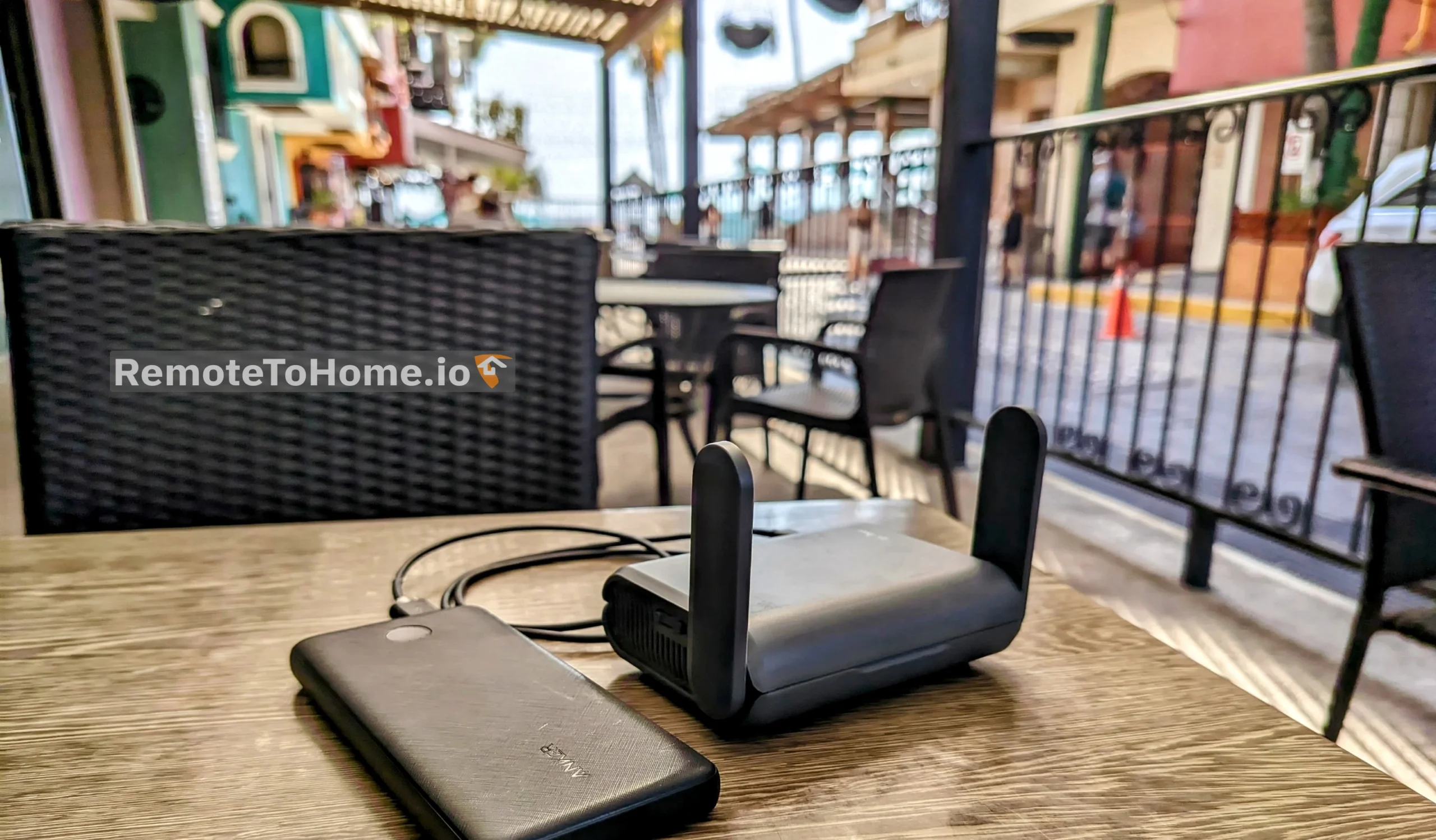
These articles focus on the preferred solution of using a VPN capable router as your VPN client, which means that any traffic from devices connected to your “VPN client” router are transparently sent over an encrypted tunnel to appear as if the traffic originated from the IP address of your “home” VPN server. There are several reasons we suggest using a router as the VPN client instead of using a software-based client directly on your laptop/PC:
- Company IT Policies – Most remote workers are restricted from installing non-approved external software onto their work devices (for good reason, really). This would prevent you from installing a personal VPN client on your work device, and even if you were allowed, it would be obvious as most companies are able to see an inventory of all software installed on a work device.
- “Dual VPN” client issues – Most remote workers must use a company VPN software client to connect to their organization’s network. Typically (without extensive customization of network routing tables) you cannot successfully run two VPN clients on the same device simultaneously. You’d be left with “either connect to my work VPN network, OR connect to my personal VPN network”, but not both at the same time.
- Network detection – Even if you’re using a personal laptop/PC to connect to your company’s network, they typically will require you connect either using a VPN client from them that you’re required to install on your device, or some kind of “zero trust” software client that allows you to connect over RDP (remote desktop protocol). Typically this software is able to view/log the basic details of the network you’re connecting from.
To work around these challenges, you can use a VPN router (that travels with you) as your VPN client, and then connect your work devices to it. In this case, the VPN router creates the secure tunnel with your home VPN server and transparently routes the traffic of any devices connected to it through this tunnel. This means the connected devices are not aware they’re even being connected via a VPN. They just “see” the device has an internet connection and don’t know the difference between being directly connected to a router in your living-room versus a router that’s virtually connected to your living-room over a VPN. This being said, let’s cover a few other challenges that no VPN can cover.
Blockers - GPS, Company Mobile Phones & SIMs
While a VPN is able to mask the source of your internet traffic and IP address, there are other challenges that most would consider “blockers” as they override the benefits of using a self-hosted VPN for travel location privacy:
- GPS devices: GPS (Global Positioning System) devices triangulate your physical device location using a system of satellites. This location process is entirely separate of “the internet” and IP addresses. If you have a work device that uses GPS it’s going to know your exact physical location regardless of using a VPN (unless you’re deep underground or in a signal shielded room). Some types of GPS devices are “passive” and just display/record your location on the device itself, but most GPS used for asset tracking are “active’ and transmit the recorded GPS coordinates back to central database via a cellular modem, the internet or even via direct-satellite response. In any case a VPN will not mask this and could even make it more obvious you’re using a VPN (e.g. the GPS shows you in one country while your IP address shows you in another). Typically, only sensitive industries (e.g. defense industry, government or devices intended for field work) will go to the expense of tracking laptops like this, but nearly all modern mobile phones are equipped with GPS.
- Company issued mobile phones / plans: As mentioned above, most all mobile phones are equipped with GPS receivers as well as the ability to triangulate location based on nearby cellular tower signals, but even if you’re able to disable all “location services” on the device itself, you still have the same issue with your mobile carrier’s billing records. Your monthly statement records will usually show which towers (city, state & country) you’ve been connecting to, and even if not by default, then it can be easily requested by the account owner. If you use a company-issued mobile phone, or even a personal phone with a company-paid plan and SIM card, then the company paying the bill can easily see your actual physical location using account billing records, even if you run a VPN client on the phone and turn off location services.
- Personal mobile phones with company MDM software (aka. ZeroTrust): Some companies allow you to use a personal mobile device to access the company network, but require you to install an administrative app on your phone. These Mobile Device Management (MDM) apps typically run with admin-level privileges on your device that enable the app to automatically override/enable Location Services and other tracking tech (wifi and bluetooth). If your employer requires use of an MDM app and phone, then your actual physical location will be provided regardless of a VPN.
Other Risks: WiFi and Bluetooth Scanning
These items must be strongly considered as they substantially risk revealing your physical location if not setup/used properly.
- Wi-Fi scanning / Wi-Fi Positioning System: Notice how your laptop / mobile device always shows you a list of nearby wifi network names you can connect to? This is because of background wifi scanning. Most all wifi capable devices come with this functionality enabled by default and it means the device is constantly using it’s radio to scan for any wifi networks (SSIDs) that are in range to connect with. Each of these SSIDs is also associated to the hardware MAC address of the wireless network interface that is broadcasting the wifi. If the network is using the default MAC address, then this address is globally unique and can also be used to look up the hardware manufacturer that made the interface. Both the network name/SSID and the MAC address are logged (at least temporarily) by your laptop/mobile just by scanning, even if you never try to connect to that network.
- Bluetooth (BT) scanning: Just like with Wi-Fi, each bluetooth device is providing a small wireless network that’s also associated with a unique MAC address; and again these names & MAC addresses are temporarily logged by your device. More recently, this is how Apple AirTags (and AirTag cases for AirPods) work – by crowdsourcing everyone’s Apple devices as part of a global wifi+bluetooth mesh network to locate any tagged devices in the surrounding area.
- Company device auto-location & reporting: If you’re using a company-managed device with Location Services enabled (in Windows, MacOS, iPhone or Android) the device will automatically (and instantly) cross-reference the nearby wifi networks against a global database and triangulate your real position. If the company has configured it, this metadata will even show in your company Active Directory / Entra ID login history and can trigger automated alerts. Most current MacOS & Windows version will also use this to auto-update your device timzone now – ignoring the timezone provided via DHCP by the upstream router. Your company IT staff could even go to the effort to look at the recent history logs for the Wi-Fi & BT scanning data and cross-reference it manually.
- Manual cross-reference: There are a number of services that have built up databases of both SSIDs and MAC addresses, and have mapped these to the approximate physical location of the wifi. The largest trackers of this data are the mobile OS providers (e.g. Google & Apple) and mobile apps (Meta, TikTok etc), but there are also open community databases, such as Wigle.net, that can be used for free to look up the location of an SSID or MAC.
Summary: If you have Wi-FI or Bluetooth scanning enabled on your devices and your company has access to these logs, then your company IT could easily cross-reference this SSID/MAC data to find your approximate physical location, bypassing the protection of using a VPN. Ideally, the answer to this is to only use a physical network cable to connect your work device to your VPN travel router and disable both Wi-Fi and BT altogether on any company-managed devices. If, for some reason, you cannot use a physical cable connection, then the next best option is if you can disable the “Location Services” functionality built into the operating system, but often this is locked into the On position and requires admin rights to disable.
BT scanning is slightly less “risky” than Wi-Fi scanning in that the radio range is much smaller and that many BT devices are often constantly “on the move”, so the public mapping data for these devices is less complete and reliable. Of course Google/Apple internal tracking data is much more comprehensive for this (based on data collected directly from all the devices running their respective OS), but would typically not be disclosed to 3rd parties such as your employer (except potentially for legal warrants and as described in their privacy policies).
Other Risks: Authentication Apps (MFA / 2FA), Workplace Apps & Device Settings
Like the items above, these are not necessarily “blockers” but must be carefully considered as they still risk revealing your physical location if not setup/used properly.
- Company Multi-Factor Authentication (MFA / 2FA): It’s becoming more common for companies to require employees use MFA when connecting to corporate resources. These may or may not present some risk to location privacy. When talking about the phone apps, this section is in the context of using a personal-owned phone (with personal service plan). If you’re using a company-provided phone then see the “Blockers” section above instead.
- Standard MFA mobile apps: This includes common MFA apps like Google Authenticator, Microsoft Authenticator, Authy, Duo Mobile, etc, that you have installed directly from the Google/Apple standard app stores. If your company’s MFA allows use of one of these standard apps (with no other hardware accessories), then using it for generating company MFA codes still presents some risk to location privacy. For example the MS Authenticator API allows sending of device GPS coordinates as part of the MFA response. If you want to be extra careful, then either use a separate (old) phone with no SIM card and Location Services/Wi-FI/BT disabled to run the app. A less careful method would simply be to ensure the “location” permissions are disabled for the app on your regular personal phone (or use “Airplane Mode”). If the company’s MFA policy demands GPS coordinates are part of the authentication process then you’ll know as the app will request location access permission on each use and deny authentication if the permission is not allowed.
- Company MFA mobile apps: If your company provides a mobile MFA app that is non-standard (can only be used specifically for your company’s MFA), then it could present more risk. In this case it would actually be preferred to install the app only on a separate (old/cheap) phone with no SIM card and Location Services disabled. If internet access is required to function, you only connect this phone to you travel router’s VPN restricted network and disable all Location Services and Wi-FI scanning, as well as Bluetooth. If you don’t have a separate mobile device for this, then at least ensure all the “location” permissions are disabled for the app on your regular personal phone. IF the authenticator app requires Administrative-level privileges on your phone, then refer to the “Personal mobile phones with company MDM software” section above – as this is more than just an normal MFA app.
- Hardware MFA devices: If your company requires additional hardware MFA devices such Yubikey, Google Titan, Thetis, RSA SecurID or Entra ID, etc.. then you have more homework to do to understand your risks. The models and associated capabilities of these devices vary greatly. Some simply add a unique code or bio/fingerprint ID to the MFA process (which don’t present much added risk), but others may also require NFC or BT connection to your phone and will include GPS coordinates from the phone, or may even have their own internal GPS tracking receiver. There’s no simple answer for this. You can contact us if you want help to explore your options more thoroughly, but separate hardware is a potential wildcard (and the fact that your company utilizes this much additional security may present other concerns).
- Workplace Apps: Your company may allow you to use standard productivity apps such as Slack, Webex, Zoom MS Teams, etc, on your personal devices to collaborate with co-workers (even without login to the company network). If location privacy is a concern, then the safest option is *not* to have these on your personal phone while traveling – but, if it’s critical to you, then realize some of these apps my inadvertently giveaway information even if they are not “location aware”. For example, if you have Slack on your personal phone and linked to your company’s Slack instance, then by default the Slack app will update your Slack profile’s timezone to reflect the timezone that your mobile phone is currently in – across your entire company Slack profile (don’t ask me why I know this ; ). In this instance you need to change the Slack setting of *every* device signed into this profile to the same manual timezone setting (matching your home). If you have any app that connects to a company-provided instance to collaborate, you need to look for these similar behaviors
- Operating System Clocks & App Timezone Settings: Most any type of portable device is set to automatically update it’s system clock and the timezone based on your location. If you’re using a personal mobile device with cellular service it will use the cellular network for this setting. Even if it’s only an internet / IP based device, then some devices will look for a “timezone offset” provide by the upstream router (DHCP service). If you’re using a travel router as your VPN client, then you can overcome this by ensuring the travel router’s timezone is manually set to the timezone of your home location, but using any device for work that has any connection (cell, gps, wifi, etc) outside your VPN client introduces a risk of revealing your current timezone. You need to ensure every device that in any way interacts with work data (MFA, etc) is manually set to match your “home” timezone.
Summary: Understanding the risk and proper configuration of MFA, workplace app settings and timezone settings is critical to maintaining location privacy.
Simple MFA mobile apps are the most common and can typically be used with proper configuration and disciplined procedure, but some Hardware MFA devices could present a substantial additional risk to location privacy.
The Disclaimers - Legal, Export, Tax, Licenses
Consider more than just functionality and tech..
As a VPN consulting service our expertise is in the functional and technical feasibility of using a VPN service to meet your needs, but with decades of real-world expat experience, we understand nothing in life is ever this simple. This is by no means an exhaustive list, but only a few highlight examples of items we’d suggest you need to think about and consult with professionals before deciding to work internationally.
IMPORTANT NOTE: RemoteToHome.io (RTH) is not qualified to offer advice on any of these topics – this is only a highlight of some of the factors we’ve personally had experience with, and would suggest you seek professional advice to understand and consider.
Legality
This could cover so many areas (so many laws), but there are at least a couple directly related items we will call attention to:
- Legal use of VPN technology: While VPN technology is legal in most of the world, there are a few countries that ban or restrict VPN technology. NordVPN does a good job of explaining countries that may take exception to you using a VPN here. Trying to use a commercial or self-hosted VPN from these countries could be a violation of local law.
- Tax and Work Permit restrictions: In many countries it may be simple for you to obtain a tourist visa to vacation and spend leisure money. For many though, there is an entirely different set of rules that apply to doing “productive work” or earning income while inside that country (even if the income comes from doing remote work from your home country). This could range anywhere from needing a separate personal work visa to requiring your employer to setup a local subsidiary entity within the country and paying local taxes for any money you earn while working “remotely” from that country. Most tourist visas are designed around you entering a country for leisure or just to attend business meetings about work – not for you to temporarily live there and perform daily work. You may also become personally liable for tax payments to the country you work in for the money you earn within that country.
- Seek professional advice: We would advise consulting at least an immigration attorney and tax professional on these topics before considering doing “productive work” in another country – especially for any prolonged period of time.
Sensitive or Export Controlled Data
If your organization provides you access to such data there may be legal restrictions to traveling with a device that stores – or has access to – this data from outside of your country. This could apply to trade secrets, restricted intellectual property or even basic customer or employee personal data that may be stored on your work devices. In some cases violations can include government, civil or even criminal penalties. Hopefully your organization has trained you in the proper handling and safeguard of such data, but again, you should seek professional advice before considering travel.
Insurance & Device/Data Liability
You should consider that your insurance policies (health, life, property, etc) may not cover you outside your home country, or even for home country follow up treatment of incidents that initially occurred while outside your home country. Even some “travel insurance” policies only cover you for a limited duration or contain other exclusions. You should thoroughly familiarize yourself with your policies and talk to a professional to understand your exposure when traveling, especially for extended periods.
Likewise consider that loss of personal or company property may not be covered outside your home country, and could open you to civil/criminal exposure for not only the loss of a hardware device, but also the potential value of the data contained on a device.
Company Policies & Professional Licenses
While some organizations are ambivalent about exact location requirements for remote workers, others may have formal policies regarding work location requirements. Some of these may exist for very real reasons (such as the tax and work permit considerations listed above). We always recommends you familiarize yourself with your organization’s work and travel policies.
For those with professional work licenses, you likely have extra requirements to consider. For example, some professions require you to be licensed in the location you physically provide a service from, even it’s done remotely. Travelling without considering these requirements could result in more than just risking the loss of a single job, but also your future ability to wok in your career field. Another example for financial traders is that certain financial instruments are only legally available to trade based on your physical country of residence and domicile.
We (RTH) are not qualified and will not provide advice related to employment matters or policy.
Summary: Travelling is often unpredictable. Just because a VPN may make it functionally & technically feasible, does not mean it’s a great (or even a good) idea. It’s important to consider the realistic possibilities and consequences when planning to travel internationally.
What's next?
Decided a self-hosted VPN is right for you? Now what?
This post attempted to cover the major functional and business items you should consider before deciding a self-hosted VPN is the right answer for your needs. If the answer is still “yes”, then the next step is to understand the technical requirements needed to actually make it work. In our next post we’ll discuss home ISP requirements and other technical limitations that are key to determining which self-hosted VPN technology and hardware you should use in to implement your VPN solution.
We will cover all this in “VPN Technical Requirements” (coming soon)